Massive X overview
Learn the main concepts and interface elements of Massive X.
This chapter introduces the main controls and areas of Massive X.
When you first open Massive X, you see the default Play view, along with a set of global controls at the top of the window:
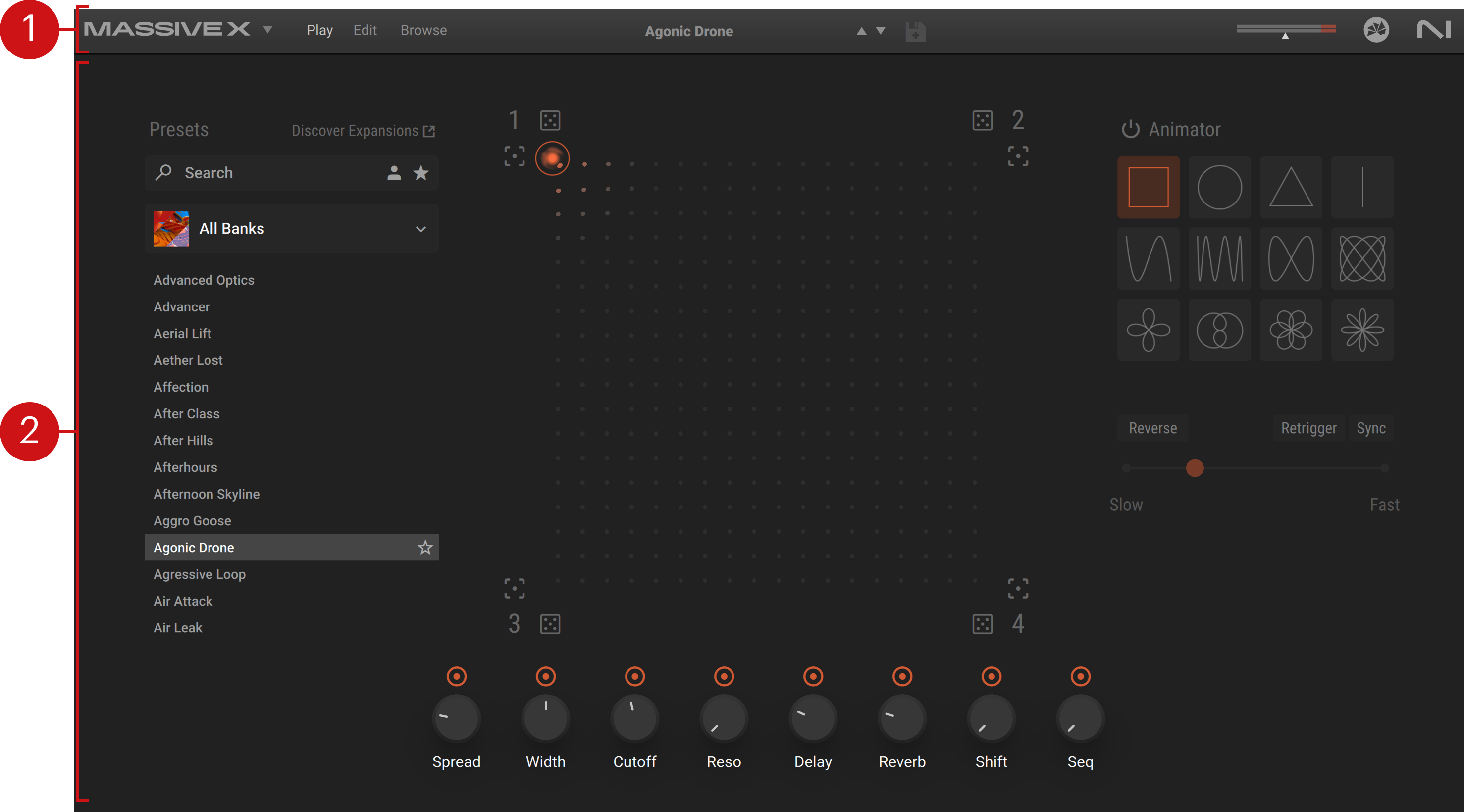
Header: Always visible at the top of the window, the Header provides important elements controlling, for example, the displayed view, the loaded preset, the main volume level, and various instrument settings. Refer to Header.
Instrument views: Below the Header, the biggest part of the instrument window can display different views:
The Play view (depicted above) provides intuitive tools to quickly generate evolving sounds from your libraries and Expansions. Refer to Play view.
The Edit view (not available in Massive X Player) lets you configure Massive X’s sound engine in detail. Refer to Edit view.
The Browse view contains the Browser, which lets you quickly find and load the desired presets from your libraries and Expansions. Refer to Browser and presets.
Header
Sitting at the top of Massive X’s window, the Header provides easy access to a number of important elements, including the different views, the Browser, the Main Volume, and the Settings menu.

Massive X logo: Opens the About dialog with information about the version number, license, and credits of the instrument.
Settings menu (downward arrow): Provides options for managing user presets, adjusting the instrument's visual appearance, and a few other settings. Refer to Settings menu.
View buttons: These buttons let you switch between the instrument views:
Play: Opens the Play view. Refer to Play view.
Edit (not available in Massive X Player): Opens the Edit view. Refer to Edit view.
Browse: Opens the Browse view and the Browser. Refer to Browser and presets.
Preset selector: Shows the name of the loaded preset. You can click the top and down arrows to load the previous or next preset from the current Results list: In Play view this will be the Results list in the side pane browser, whereas in Browse view or Edit view this will be the Results list in the Browser. A little star appears next to the preset name to indicate that your modifications have not been saved yet.
Save Preset button (floppy disk icon): Saves the current state as a user preset. Refer to Saving a preset.
Main Volume: Adjusts the output level of Massive X. The meter shows the current level of the output signal.
NI logo: Opens the About dialog with information about the version number, license, and credits of the instrument.
Settings menu
The Settings menu in the Header provides options for managing user content, adjusting the visual appearance of the interface, setting the control sensitivity, and adjusting the Morpher automation. You can also access learning resources, discover Massive X Expansions, and set usage data tracking.
To open the Settings menu, click the downward arrow icon next to the Massive X logo in the Header.
The Settings menu contains the following entries:
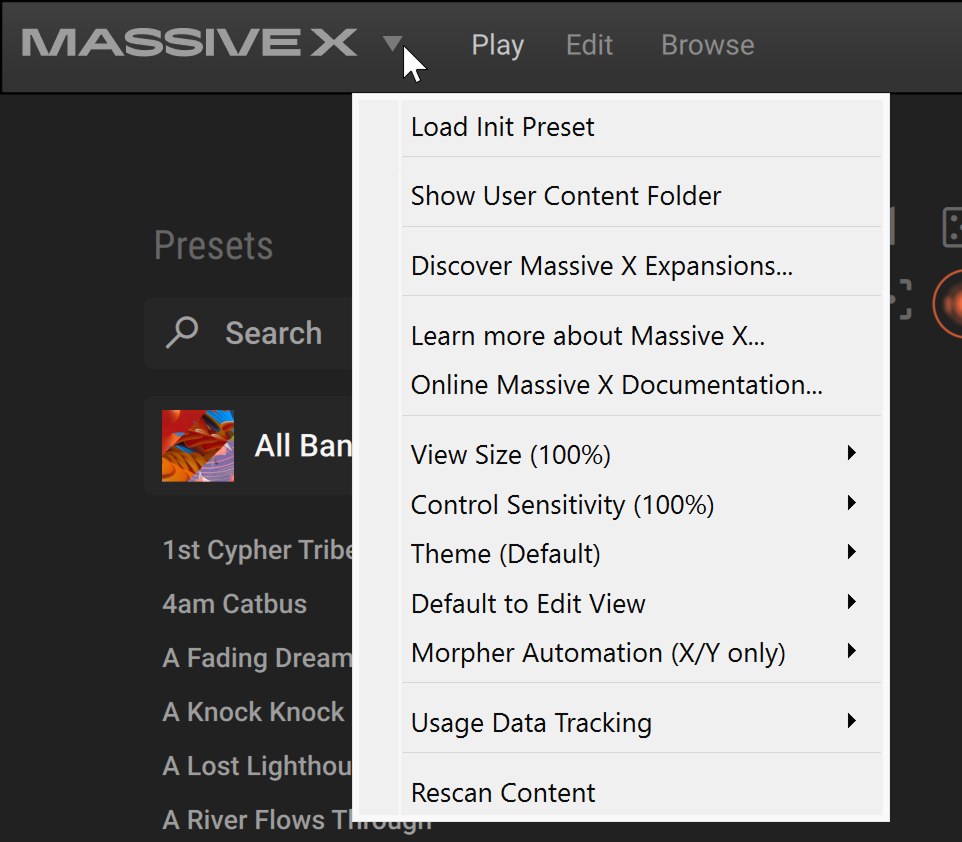 |
Load Init Preset: Loads a standard template preset with basic settings, allowing you to start designing a new sound from scratch.
Show User Content Folder: Opens the folder on the hard drive containing your user content. Refer to Managing user presets.
Discover Massive X Expansions…: Opens the Massive X Expansions page on the Native Instruments website.
Learn more about Massive X…: Opens the Massive X product page on the Native Instruments website.
Online Massive X Documentation…: Opens the online Massive X manual (the document that you are reading).
View Size: Provides eight size settings for the plug-in and saves the selected size as the default.
Control Sensitivity: Provides nine settings for the sensitivity response of knobs and sliders.
Theme: Provides four different visual appearances for the plug-in. In addition to the default setting, a Dark color scheme is available, as well as Flat versions that are optimized for efficiency.
Default to Edit View (not available in Massive X Player): When this option is active, Massive X first opens in Edit view instead of Play view.
Morpher Automation: Lets you choose which parameter changes are exposed to your DAW when you move the Morpher cursor. Refer to Controlling the Morpher using MIDI or host automation.
Usage Data Tracking: Offers more information about usage data tracking, and the option to activate or deactivate the feature.
Rescan Content: Updates the Browser to reflect all changes made to the User Content folder. Refer to Managing user presets.